
After teaching with Zoom for over a year now, I think I have figured out my ideal setup. I wanted a setup that would allow me to quickly do the following:
- Use breakout rooms
- Share my screen for slides and demonstrations
- Record music examples for sharing into the chat
- Allow me to see all of the class in gallery view, and have the chat visible, as well as the participant list.
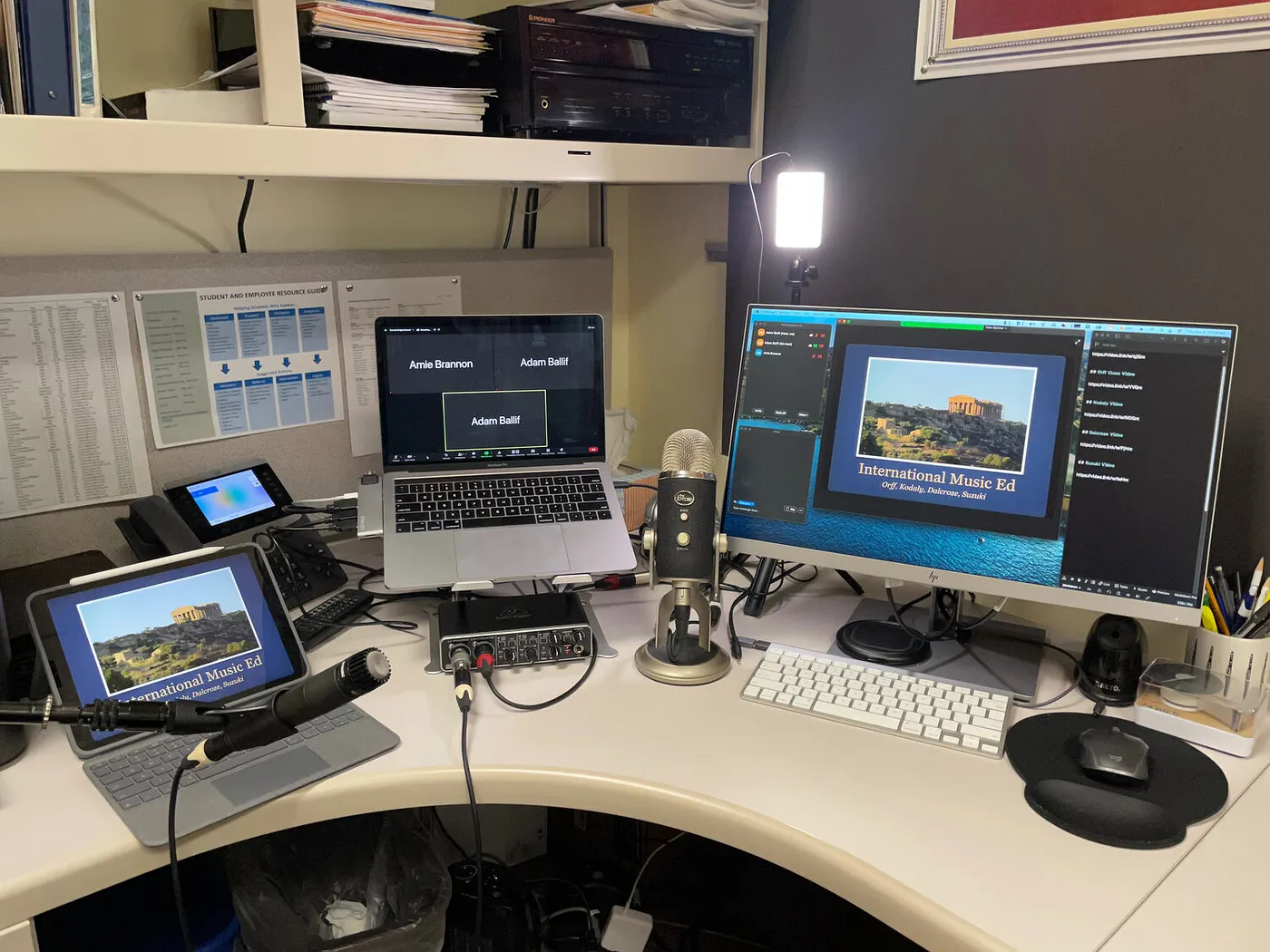
Using a single screen, I can do all of the above, but not simultaneously, and there was always a certain amount of fiddling and wasted class time when changing between these activities. I now have a three screen setup: laptop, external monitor, and iPad.
Two Problems (Solved)
- For whatever reason, my laptop is unable to reliably share screen content. This bug may have been introduced in a recent Zoom update. Whenever I share my screen from my laptop, the screen shares initially, but then quickly freezes. I am able to share content from my iPad over Zoom without any problems.
- When I host the meeting from my iPad, I can’t find a way to use breakout rooms. The breakout rooms seem to be only available from my laptop Zoom application.
My three-screen setup solves both of these problems for me. I host the meeting from my laptop, and then have my iPad join as a co-host. I can enable breakout rooms from the laptop, and share my slides from the iPad. An additional benefit of sharing the slides from my iPad, is that I can see what the students are seeing and monitor the latency of the shared screen. Become a member
iPad
- Share Keynote Slides
- Use as a digital whiteboard with Apple Pencil
Laptop
- Host the meeting
- Use Gallery View to see the students throughout the class
- Post attachments, links, or audio files into the chat
- Organize breakout rooms
External Monitor
- Chat window
- Participant window
- View shared content from the iPad
- Keep and view any other notes or windows for teaching references.